I'm sick of smart TV privacy worries, so I'm taking my TV off the internet for good — here's why you should too
Smart TVs have long been in controversial waters as far as privacy goes. From claims that your TV is a "privacy nightmare" to accusations of some models being a "mass surveillance system", you probably haven't failed to notice the periodic storms that have erupted around what televisions get up to in terms of data and telemetry. The latest lightning strike that hit last week was a development around LG TVs (and PC monitors) whereby voice features (and a McAfee pop-up ad in Windows) came under fire.
LG has defended its position in no uncertain terms, it should be noted (although the mentioned Windows 11 pop-up has since been retracted). But regardless of the rights or wrongs here, this affair was enough of a reminder to prompt me to finally take action on something I've been meaning to do for quite some time anyway.
Namely, to take my smart TV offline, once and for all. This means I can ensure that I know for certain that my television isn't get up to any online 'shenanigans' with whatever data may (or may not) be getting sent here or there — because it isn't online at all. And I don't need it to be online, either.
Maybe this is something you'd like to do, as well, so if you're thinking of following in my footsteps, I'm going to break down everything for you. That includes whether you actually need to have your smart TV online, and how to go about disconnecting it from the internet while still installing updates for the television manually, should you wish, which is possible in many — but not all — cases.
Do you really need to have your smart TV online?
I'd argue that you don't need to have your smart TV online, although that said, answering this question isn't exactly straightforward and there are caveats depending on your personal situation.
Obviously, if you use the TV maker's smart hub for any of your viewing needs, and the apps therein for streaming (or anything else), then clearly, you will need the television to remain online. Although these days, most people use a streaming stick to watch all their content and don't ever go near the smart TV hub, such as the Fire TV Stick (most commonly). It's just a much better way of working. (And yes, I do realize that any such hardware may come with its own privacy-related nuances and issues, but I'm not going to get into all that here – except to say that you'll want to consider Apple TV as an option if privacy is high on your list of priorities for streaming devices).
Assuming your viewing is done via a separate stick or box of some kind, then, the only real reason to keep your TV online is to get updates from the manufacturer. In my case, I have a Sony TV that's now four years old, and at this point, updates have reduced to a trickle – and they're mostly trivial tweaks and the like.
There's nothing I really need, and arguably, firmware updates are as much of a risk as they are a potential benefit at this stage of the TV's life. I like the way my Sony runs now, the picture is great, and everything's good – and who's to say an update might not throw a spanner in the works and break something? These things happen, even if it's something as simple as resetting my TV settings, which isn't fatal, but is annoying (and it has happened before).
Okay, so one thing I won't get that's regarded as vital is security updates and fixes. And I understand why these are thought of as critical, but hey, guess what: I'm taking my TV fully offline, so I won't need them. (There's no greater assurance of security than ditching online connectivity, anyway).
Granted, there are other online features I'll lose too – voice command functionality with the TV, for example, but it's all minor stuff in the great scheme of things, and none of it matters to me personally (I use my streaming stick's voice search, anyway).
If you have an older smart TV, you're likely in a similar boat to me, although if you have a newer model, then maybe your television is still receiving firmware updates which are important, with fixes or new features you actually want.
In that case, you may still want to jump online to download and install those upgrades, but you only need to hop on temporarily to do so (maybe once every few months).
However, there is another way to get updates for your smart TV while keeping it offline permanently. Admittedly, it's a bit of a hassle compared to a seamless update within the TV's interface itself, but it does avoid going online at all, while still ensuring your smart TV is kept fully up-to-date. So, let's look at how to do that — but first, it's worth quickly touching on how to take your TV off the internet in case you're in any doubt.
How to take your TV offline
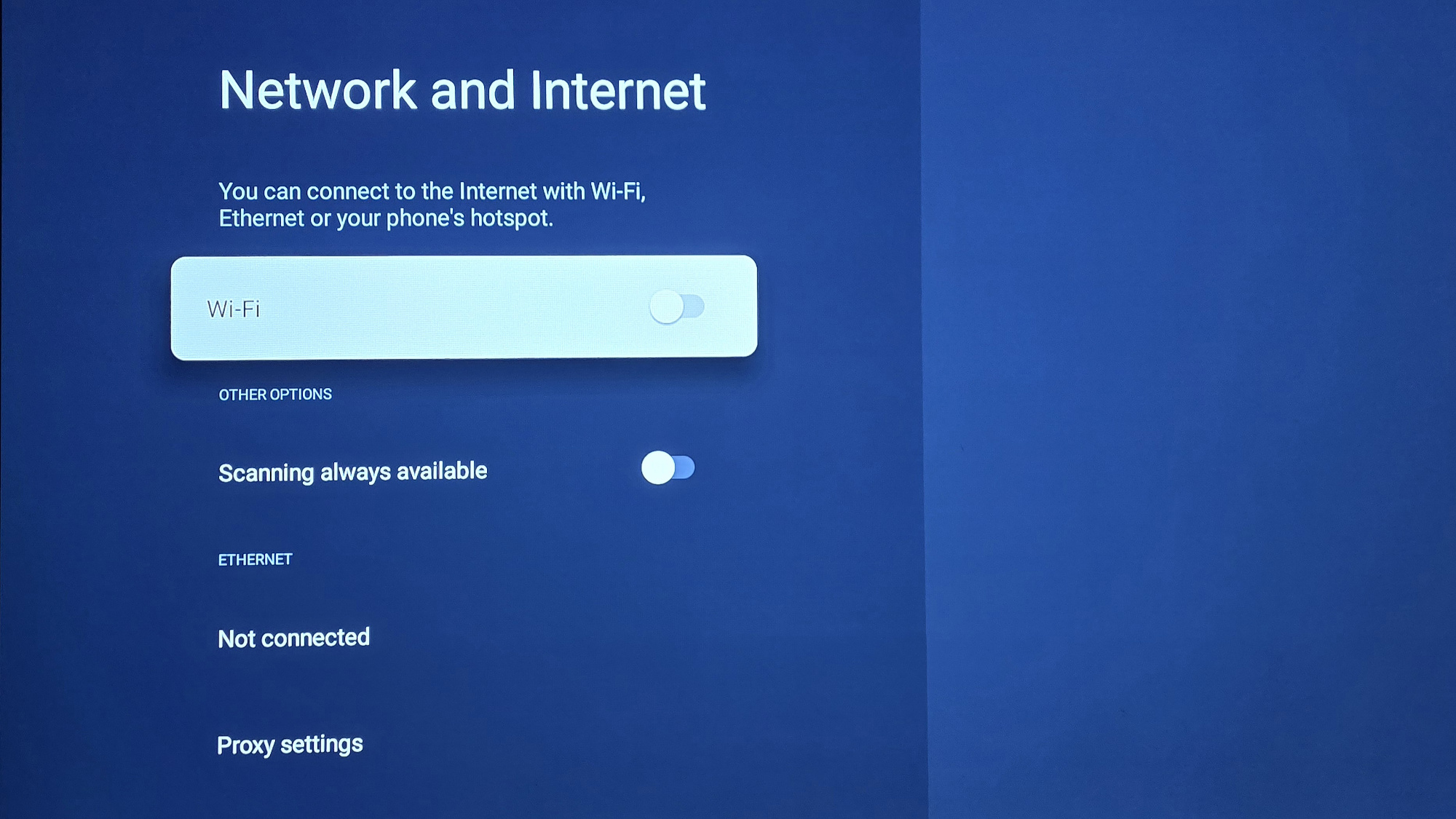
If your TV is online and you wish to revoke that internet access, it's a simple matter of turning off the Wi-Fi in the television's settings. (Assuming you're connected via Wi-Fi to your home router, of course — if you have an Ethernet connection, it's just a case of unplugging that cable from the TV).
You'll find the wireless network options somewhere in your TV's settings menu, generally under a category called 'network' or 'internet'. Head here and there'll likely be a slider or some kind of choice to turn off the Wi-Fi, and it should be as easy as flicking that switch. Of course, the method may vary slightly from TV to TV, as ever (consult your instruction manual if you get stuck).
You'll also see your home Wi-Fi network listed under available networks (or similar), and you can generally go into that option and select the choice to 'forget' the network (remove it permanently from the TV's memory). It's probably worth exercising that option as the safest way of fully disconnecting your television (although it does mean that if you want to add the wireless network again in the future, you'll have to re-enter the password).
How to install a firmware update with your smart TV offline by using a USB stick
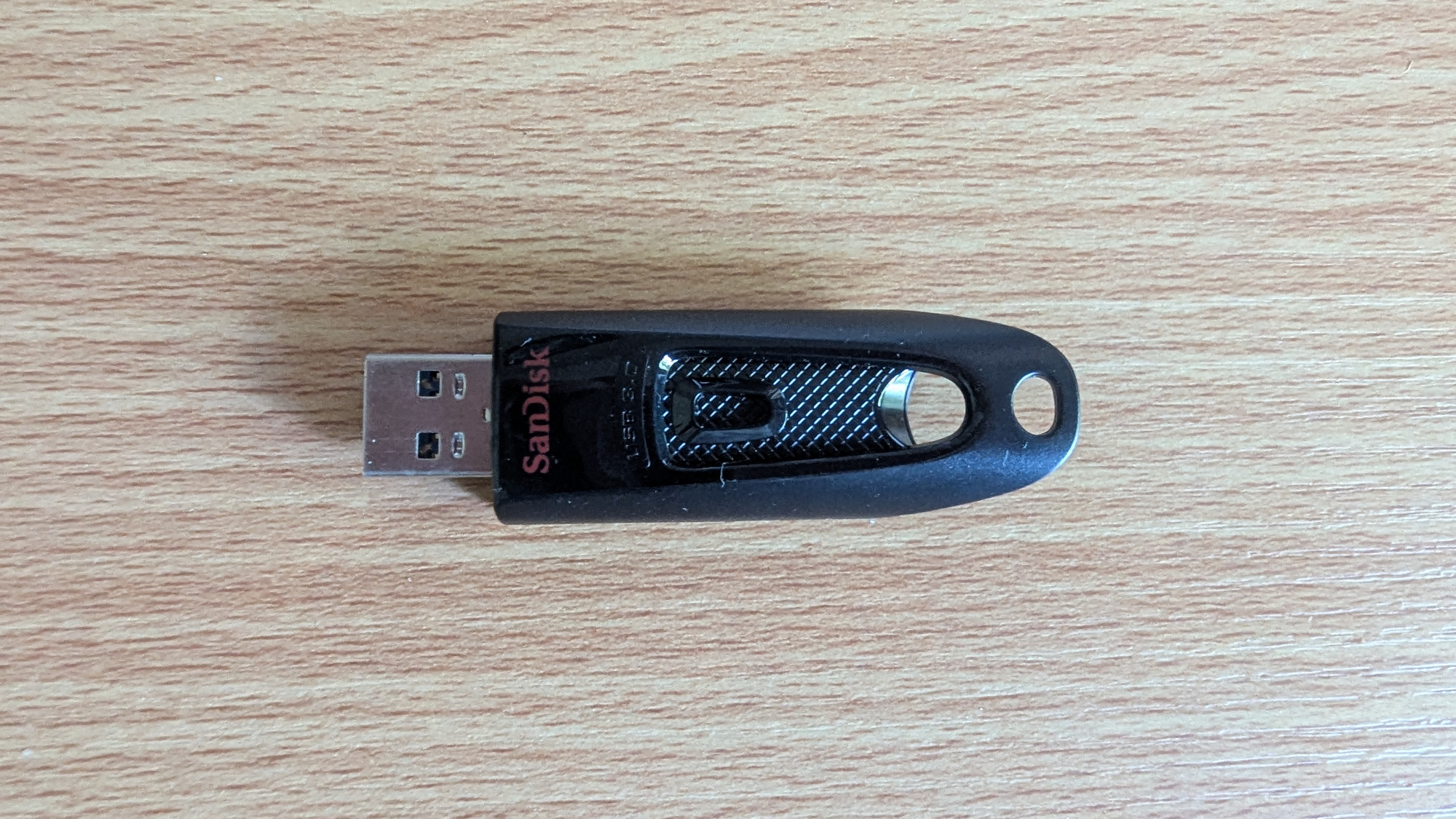
The way you install an update with the TV offline is to do so via a USB stick. This means using another device that's online (your PC or laptop) to download the TV firmware update you want, then you copy it onto the USB stick, and plug that into your TV, piping the update through locally from there.
How this works may vary from manufacturer to manufacturer, as you might expect, but it's broadly the same. Follow the general instructions below, but bear in mind that you may have to adapt them slightly based on exactly which firm makes your TV.
1. Find out your exact TV model
First things first: you should note down the exact model name of your TV. You'll find this on the invoice (from when you bought it), or on the back of the TV set itself, or it'll often be in the settings in the TV menu (generally under Settings > System > About, or similar – or find it via the Help button on your TV remote, under system information or the like).
When I say full name, you'll need that to search for the correct firmware and ensure you download the right file. You can't just search for 'Sony Bravia 55-inch TV', you'll need the exact model with the full complement of letters and numbers, such as 'Sony K55XR80PU' which I'll use here as an example.
2. Download the latest firmware from your TV manufacturer's website
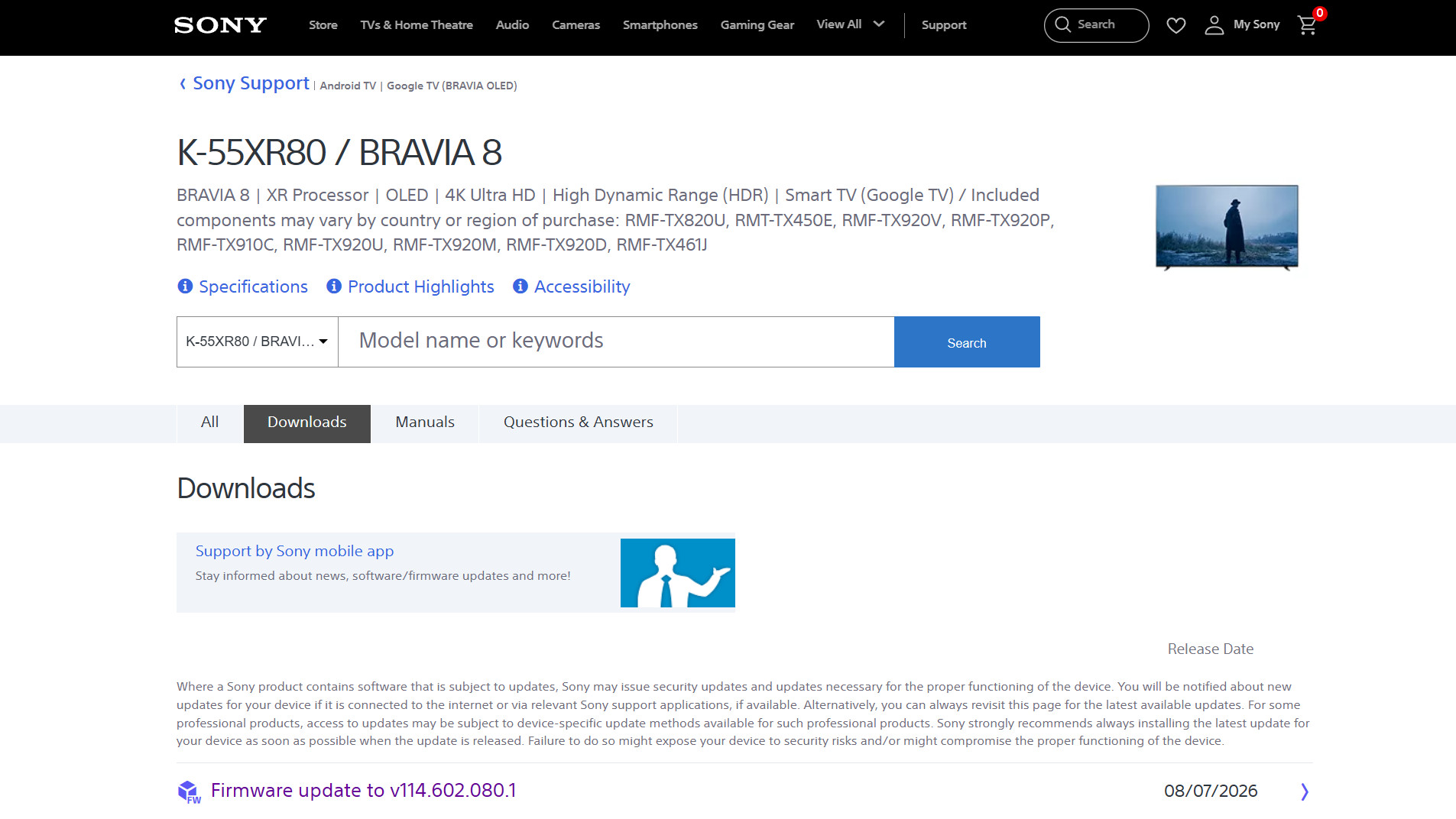
On your PC, run a Google search (or your preferred search engine) for the model name and firmware, so in our example here, we'll search for 'Sony K55XR80PU firmware'. You should get a link that takes you directly to the support web page where the manufacturer provides the relevant firmware download.
At that page, you may find the model name is truncated — it's the Sony K-55XR80 in this case, as the 'PU' bit at the end is regional model info relating to the UK. (Note that you can search directly for the firmware on the manufacturer's support site, but due to variations in the model names as observed, the site might fail to find it, so it's generally best to try Google first).
When you reach the support page for the relevant TV model, you should see the latest firmware update listed with its release date and notes about what it does. It may be referred to as 'firmware' or a 'software update', and in some cases, it might come with instructions. (Samsung calls its firmware downloads 'upgrade file USB type', for example — catchy, huh? — and LG includes a PDF guide with some downloads).
Click on the file to download it to your PC (and the instructions, too, if present).
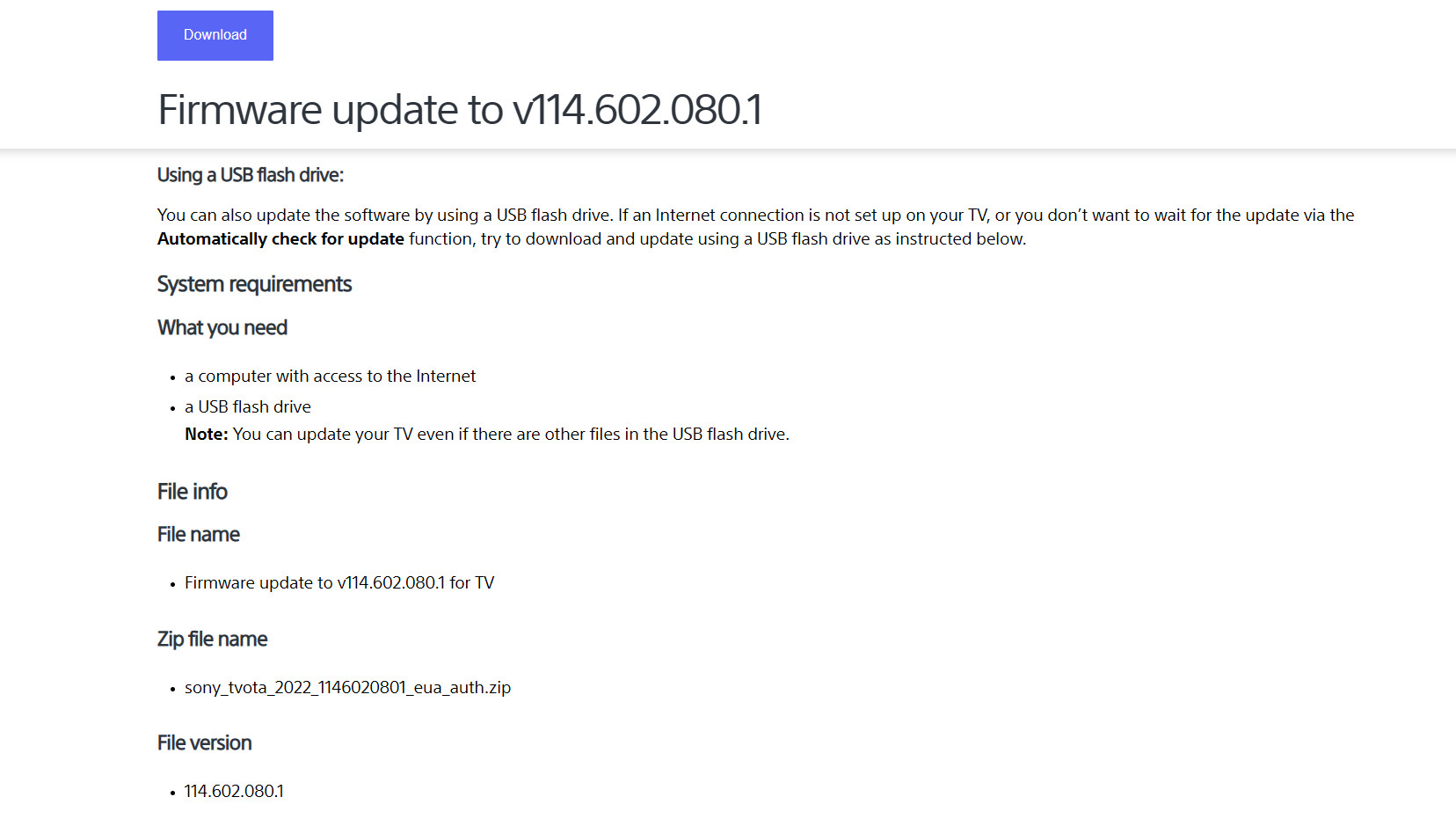
3. Put the update files on a USB stick
Once downloaded, you need to put the firmware files onto the USB stick, so insert that USB drive into your PC, and copy them across. Exactly what you do here may vary slightly — and if you have instructions from the manufacturer you can, of course, follow these — but let's continue with our Sony example to give you an idea of what's involved.
With the Sony K-55XR80 firmware update, what's downloaded to the computer is a ZIP (compressed archive) containing three files. Extract those three files to a temporary folder on your system drive, then copy them over to the root drive of the USB stick (meaning just copy it straight onto the stick — don't put it into a folder). Note that the USB stick doesn't have to be empty, it can have other files on it (the TV will ignore them and pick up what it needs — although you will need enough room for the firmware update files to fit on the USB drive, naturally).
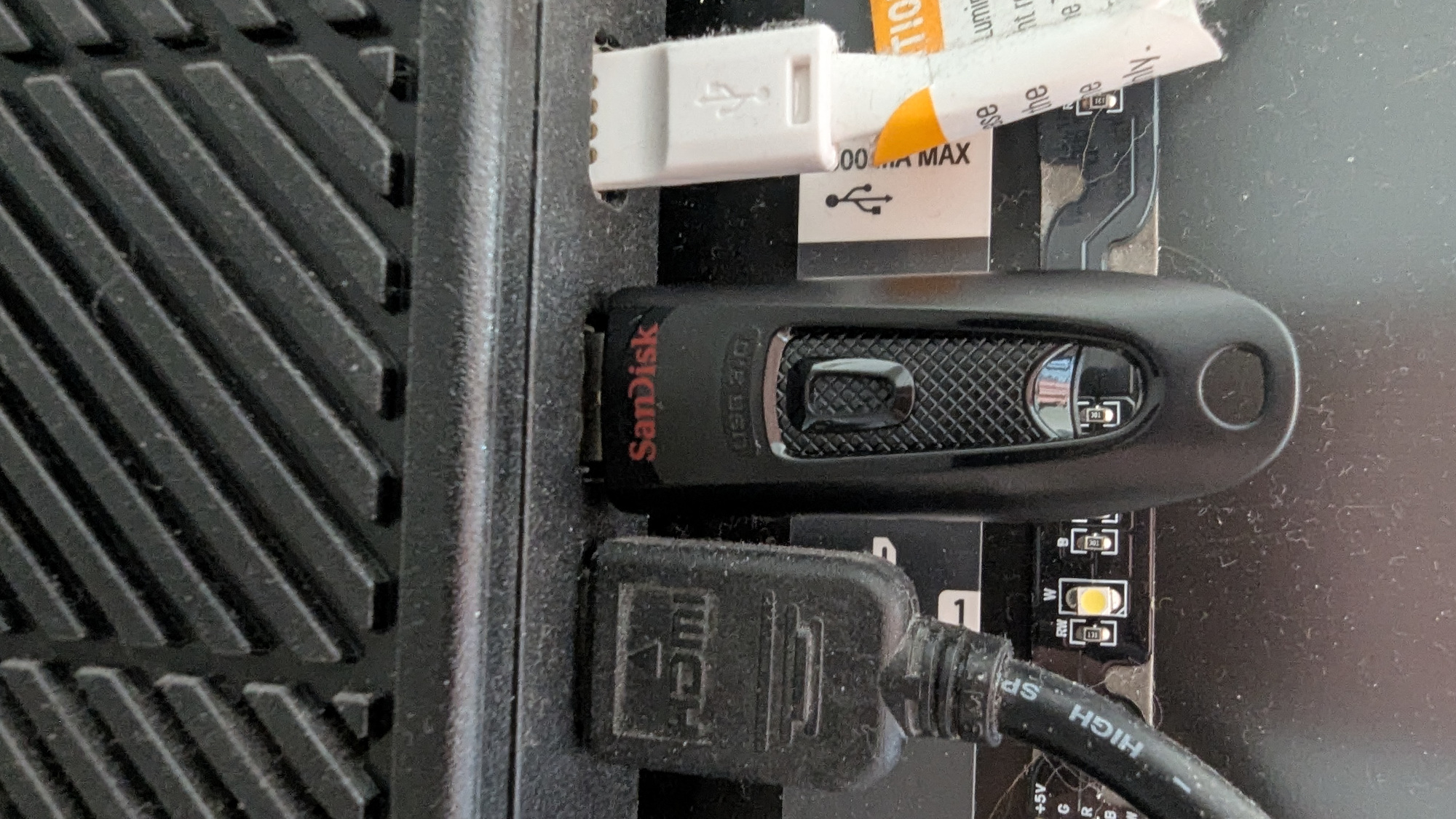
4. Insert that USB drive into a free port on your TV
Turn on the TV and plug the stick into an available USB port, and the television should detect the update, and start the installation process. (Sony suggests not having any other USB devices connected, by the way, and also rebooting your TV first, but the latter isn't really necessary — you can just turn it off, then on again, assuming it isn't off in the first place).
Slight variations with different TVs
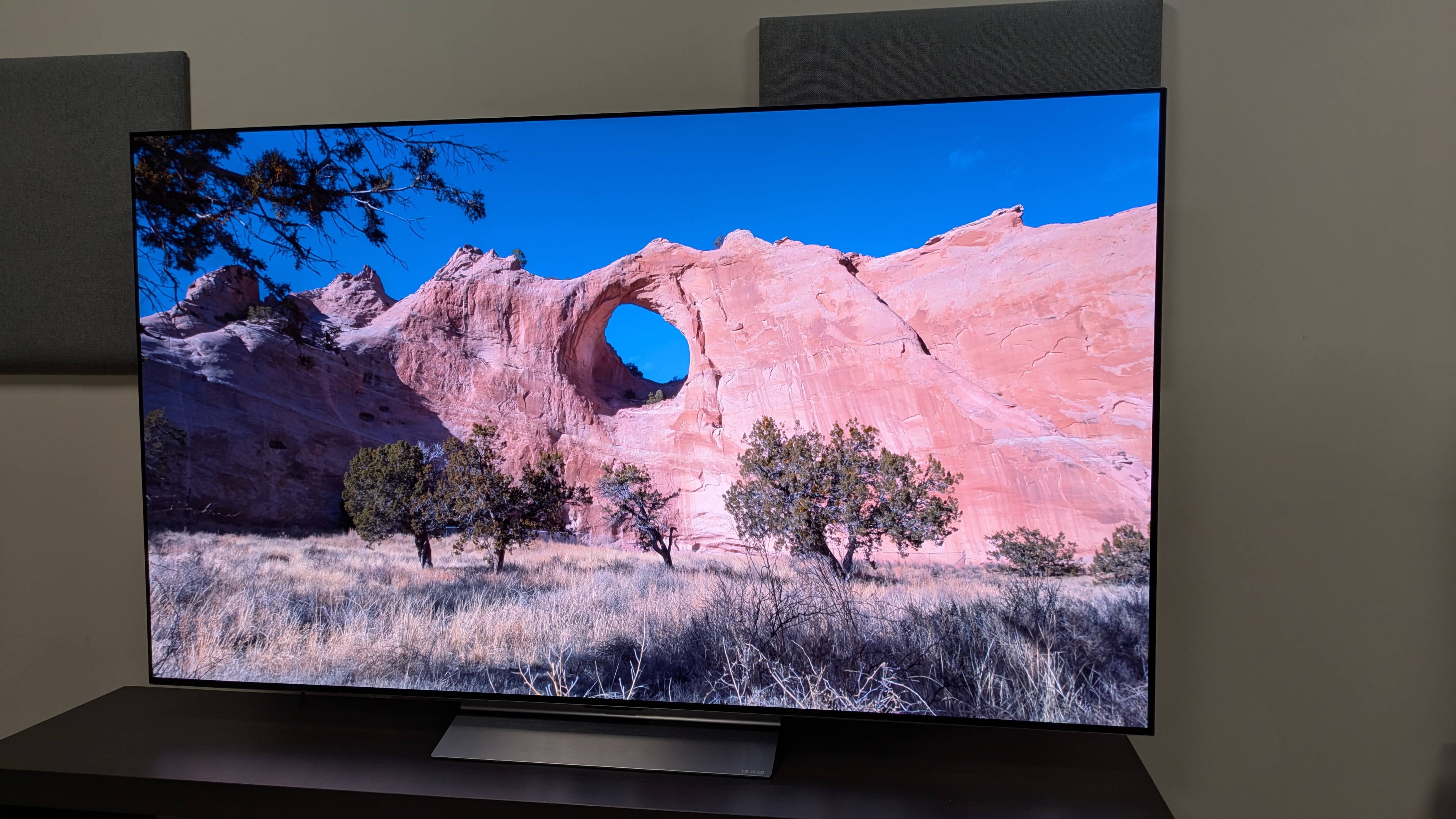
Depending on your TV, you may have to proceed a bit differently — as noted, you can follow the instructions provided by your manufacturer on the firmware download page (or the downloaded installation guide, if you get one).
For example, with LG TVs, you need to put the update files in a correctly named folder on the USB stick as detailed in the provided PDF guide (and not the root of the USB stick, as with a Sony TV). Samsung TVs require the files to go in the root of the USB stick — not in a folder — like Sony, although with a Samsung model, the update may not kick off automatically when you plug in the USB drive, and you might need to trigger it manually. (Go to Settings > All Settings > Support > Software Update in the Samsung TV's menu, then select 'Update Now').
But broadly, whatever your TV, the idea is the same: download the update files (or file), put them on the USB stick, then plug the stick into a free USB port on your TV, where the update should be automatically detected and installed. The main differences will likely lie in the number of files you may have to download, and whether or not they need to go in a folder on the USB stick. At any rate, be sure to follow the manufacturer's instructions carefully.
Done and dusted
As ever, once a firmware update has begun, don't ever turn off the TV, unplug it (or remove the USB drive), or otherwise interfere with the process, as that runs the risk of seriously messing up your precious television. Sit tight and watch the update run its course, with the TV rebooting itself automatically at some point – and then you're done and dusted.
In many cases, then, there's no need to connect your smart TV to the internet ever, even to get firmware updates. Although don't forget that you'll need to manually keep tabs on when the latest updates emerge, regularly checking the manufacturer's website, as your TV won't flag update availability for you if it isn't online.
There's a final caveat to remember here, namely that some TV manufacturers may not provide updates for download and manual installation with certain models. In that case, you're rather stuck, and indeed Panasonic is notable in this respect, because this TV maker has ditched manual updates entirely for its newer models, with firmware only available via a direct download on the TV. However, even in these scenarios, you can still keep the TV off the internet most of the time, periodically venturing online just to grab the latest firmware (should you want to).
via Hosting & Support
Comments
Post a Comment