D-Link G572: 30-second review
Living in the south of England, you’d expect the internet speeds to be pretty decent, and at one time, not long ago, in the New Forest, they were. But then, as the area started to develop, connection speeds dropped and became increasingly unstable, meaning that if you run a business, fallbacks are needed if you want to keep running.
However, even then, the cellular networks can be hit and miss, aim for the high ground, and ordinarily, you can get a signal, so when my fibre network at home keeled over completely, I reached for my usual choice of mobile network router to get me back online.
However, this time the fibre connection has not been short and tipping over for over a week with no connection and intermittent service for the last few months, I’ve had to look for a more permanent solution. Thankfully, the G572 was in for review and has now been delivering impressive connection speeds to the 4G network from its high point in the house and office.
Unlike my high-end portable 5G router, this box requires AC power, but then it provides wireless coverage that essentially matches that of the Eero 6 routers we usually use at home. In an area where connection speeds are usually lacking, the powerful antennas do the job.
While I still can’t connect to a 5G network, the 4G connection speeds are impressive, with the speed test nearly reaching 80 Mbps and upload speeds of around 6 Mbps. Still some way off the fibre connection, but a lifesaver when you rely on that connection for work and, of course, entertainment.
But this router has not only stepped in where the fibre connection fails, in the office, but another once-sweet spot for bad fibre connection, which, on last checking, has now dropped below 10Mbps and the cellular network is close to non-existent. Using this router, the cellular network connection speeds have improved enough to enable some email, web browsing, and music streaming; video streaming might be wishful thinking. Then there’s also the ability to just plug it directly into the 10G network, fully integrating it with the office network.
The other point at home is that multiple devices can be easily connected with surprising efficiency. Most days when working at home, I’d have two to three machines, three robot vacuums, which I discovered only work when there’s an internet connection, the Alexa, and a couple of mobile phones.
In the evening, that volume of connection uplifts with my partner’s phone and laptop and the use of the Fire Stick. Ordinarily, this volume of connections would cause a slowdown of the connection speeds, especially as the usual mobile router would need to be placed in relative proximity to where the devices were being used, but here, placed on another floor, the connection speeds are still impressive, with a floor between the router and the devices used.
I looked at the previous iteration of this router, the D-Link G530, last year, and was impressed with the Wi-Fi 6 performance. This new model boosts the wireless connection speed to Wi-Fi 7 and adds three more network ports to the back. The uplift in performance is significant to the point that, for most people, with a dedicated network SIM, you can seriously move away from a wired broadband connection, even if you’re limited to the 4G connection.
In my household, while this unit came in for review, the real-world testing has been a little more real-world than I would have liked. While I’m impressed with the download speeds, the upload is a little more limited.
However, if you need a fast and reliable connection in a workshop, studio, office, or at home where you don’t have a fibre connection, or you have a good 5G connection and are happy to rely on a cellular network, then this is a great option. Most importantly, while this box is expensive and the data-only SIM also doesn’t come cheap, the impact of no internet at all makes this fallback a valuable addition to your business costs.
D-Link G572: Price and availability
- How much does it cost? £350
- When is it out? Now
- Where can you get it? Online at major retailers
At present, the D-Link G572 will set you back around £350 for the base unit. On top of that cost, you will also need a mobile SIM contract.
In this test, I used the Unlimited plan from Vodafone, which is uncapped on both usage and speed through the business plans, and this set me back around £250 for the year.
There are cheaper data plans out there, but if you rely on the internet and a clean connection, then this plan, even when limited to the 4G speeds due to local network coverage, will ensure you can keep your business going.
- Value: 4/5
D-Link G572: Specs
Antenna: 10 x Wi-Fi internal antennas, 4 x LTE/5G NR internal antennas, two of which can be substituted with external TS-9 antennas
Interfaces: 4 x Gigabit Ethernet LAN ports, 1 x 2.5 Gigabit Ethernet WAN port, 1 x SIM card slot
Wireless speed: 7200Mbps (5GHz up to 5764Mbps / 2.4GHz up to 1376Mbps)
IEEE Standard: IEEE 802.11be/ax/ac/n/g/b/a, IEEE 802.3u/ab
Size: 137 × 146 × 205mm; 660g
OS installed: Router firmware with Web UI and D-Link Falcon app management
Accessories: Power adapter
Wi-Fi standard: IEEE 802.11be/ax/ac/n/g/b/a
Wi-Fi speed: BE7200, up to 5764Mbps on 5GHz and 1376Mbps on 2.4GHz
Ethernet: 4 × Gigabit LAN, 1 × 2.5GbE WAN
SIM: 1 × Nano SIM card slot
Antennas: 10 internal Wi-Fi antennas; 4 internal LTE/5G NR antennas, with two substitutable via external TS-9 antennas
Security: WPA/WPA2/WPA3, WPS, SPI firewall, anti-spoofing, IP filtering, and DMZ support
D-Link G572 Review: Design
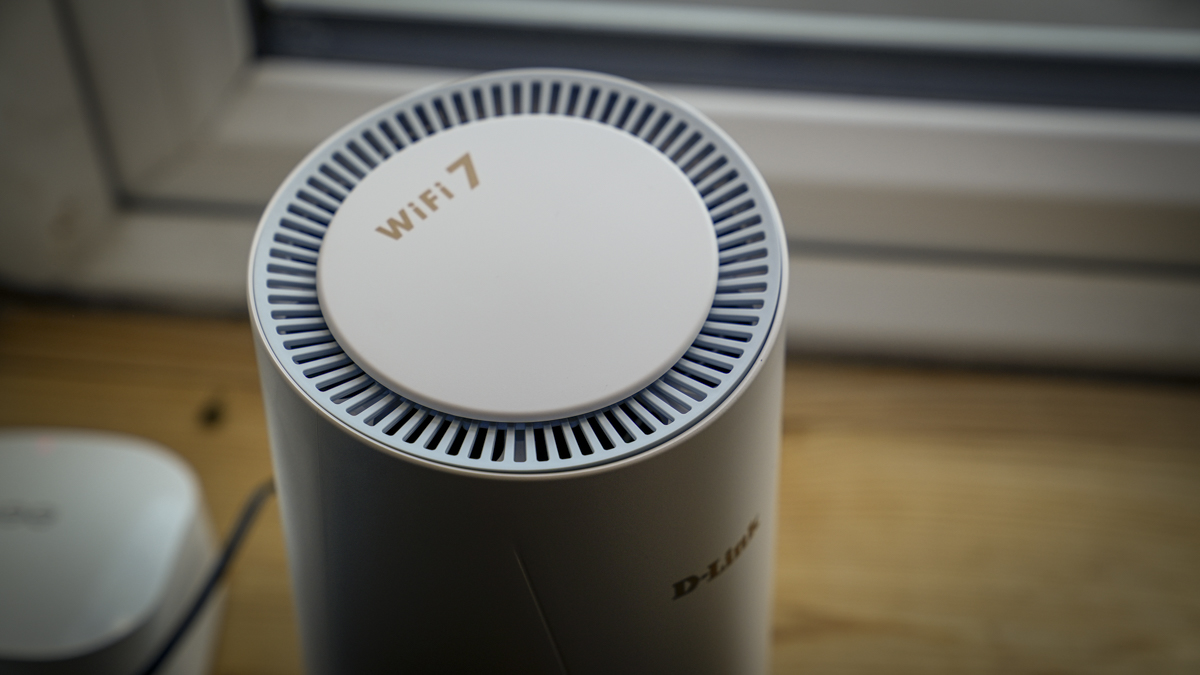
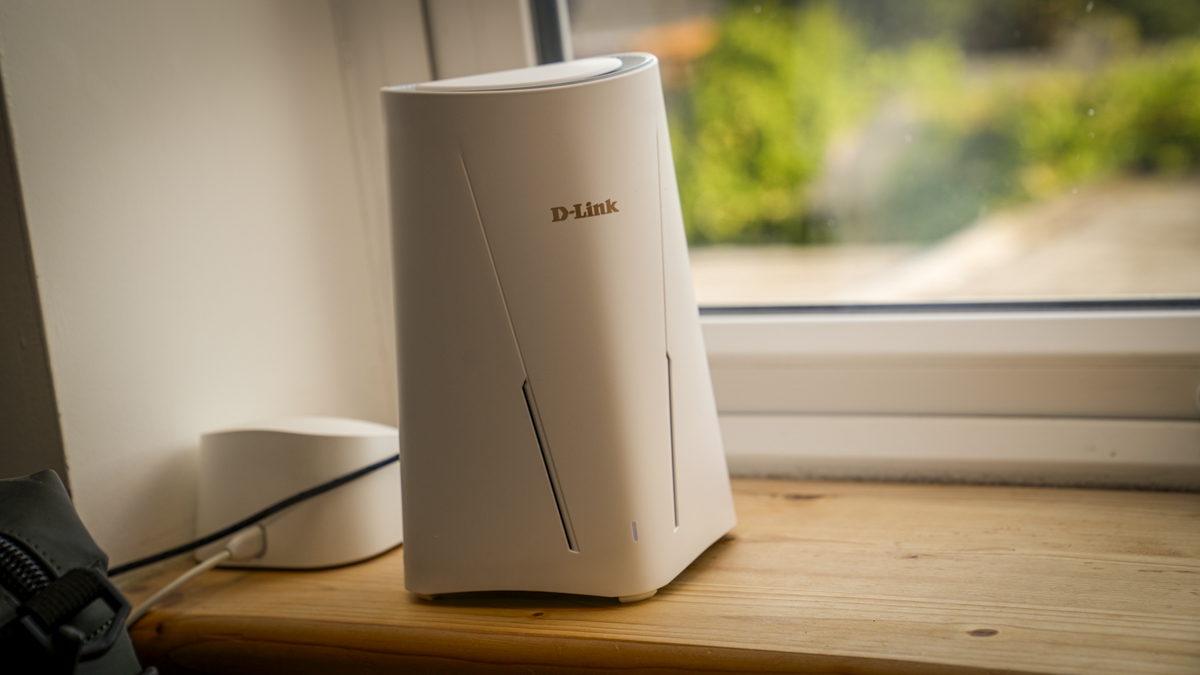
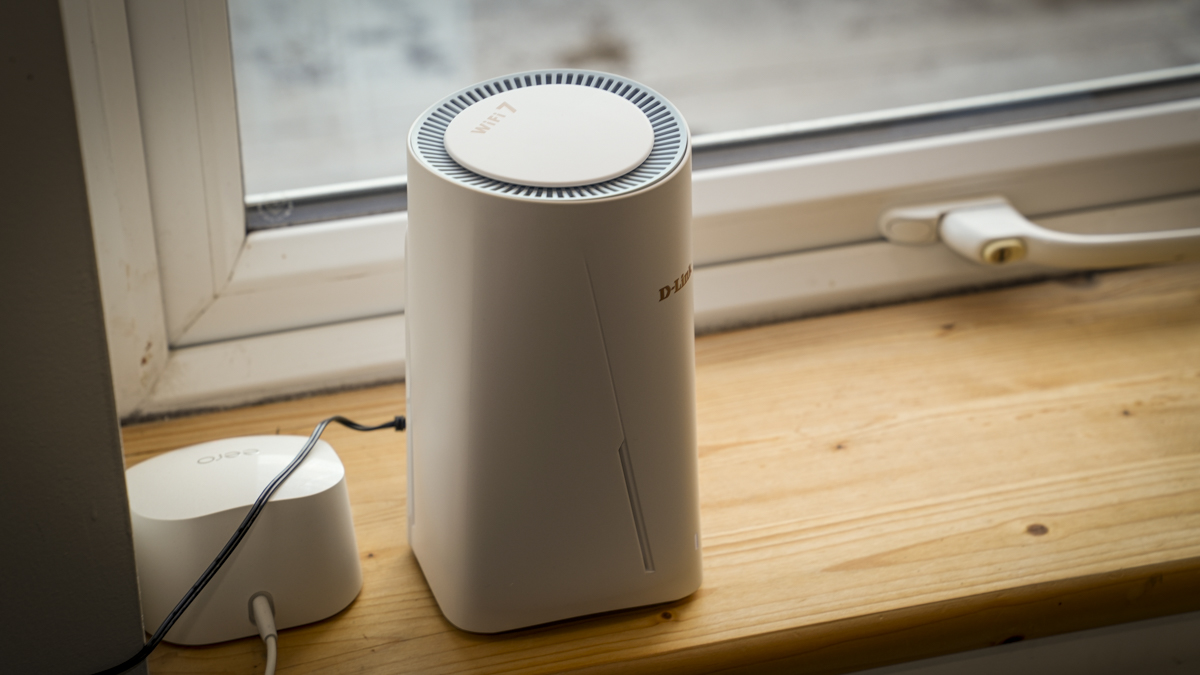
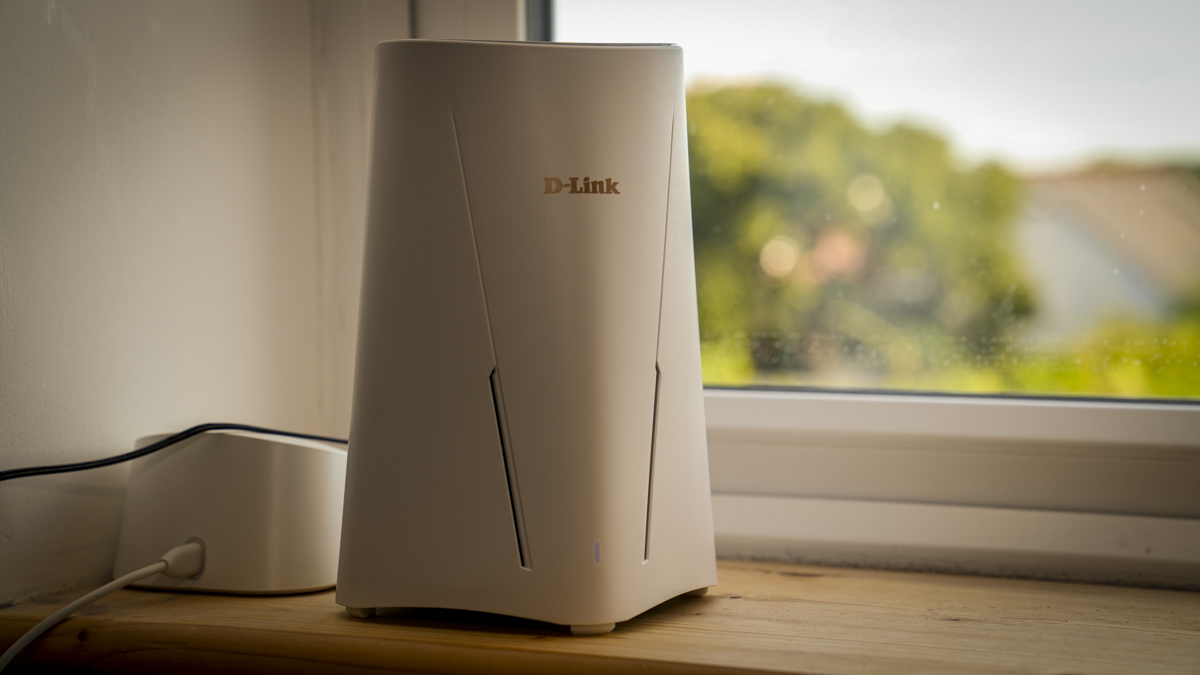
Like the excellent G530 I looked at last year, the G572 uses an almost identical upright white tower design that sits neatly on a shelf or windowsill. Throughout the test, I moved the router around to find the strongest connection in the home, and, just like with your mobile phone, it’s worth checking the signal strength.
As there’s no screen or readout on the router itself, you need to rely on the companion app, which, while simple, highlights basic information, including that all-important signal strength. While mine was still only three bars, flickering onto four on occasion, the performance was maximised for the area.
The relatively small footprint of 137 x 146mm enables easy positioning. However, you do need to make sure that the positioning is near an AC plug. In the house, that wasn’t an issue, with the prime location directly next to a socket.
Likewise, in the studio, a plug was easily located; however, in the office, the prime location was some distance from the nearest AC socket, so rather than using an extension cable, I used a Jackery 1000 V2 power station, which kept the router running happily throughout the day with a minimal impact on the capacity.
While the unit has a relatively small footprint, the height of 205mm means that you do need a decent-sized shelf height to position the router, and as I moved from one location to another, I actually found that this height was pretty average for most of the shelving units that I use across all locations, so the router fitted without issue.
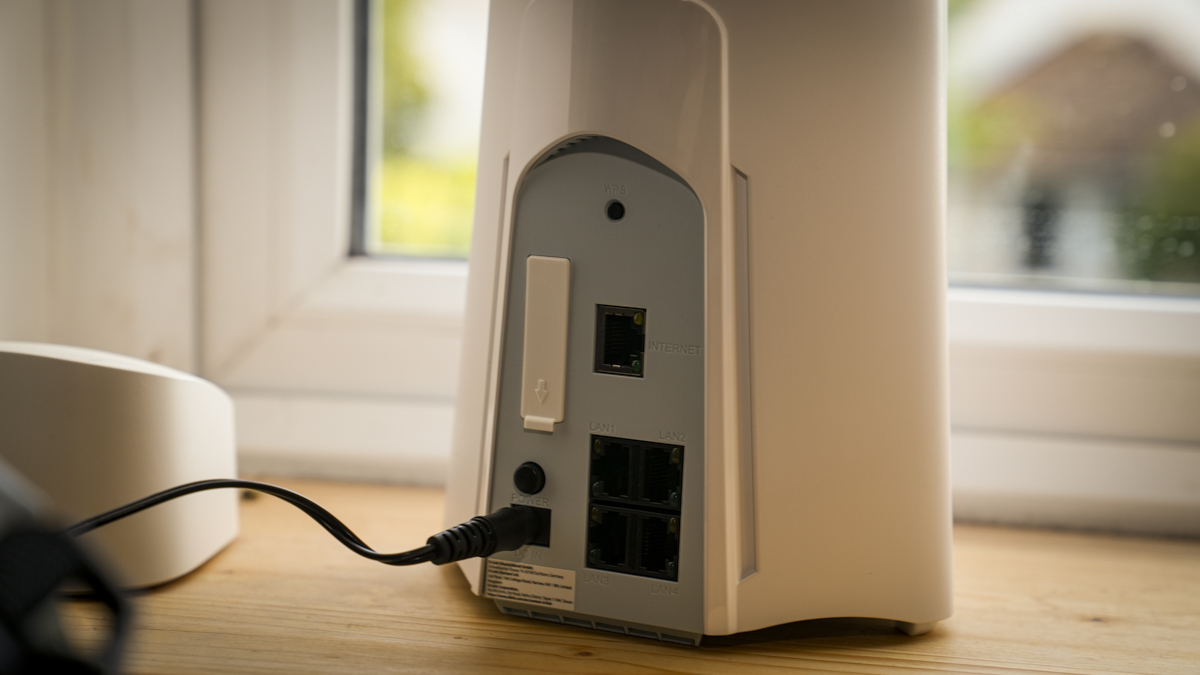
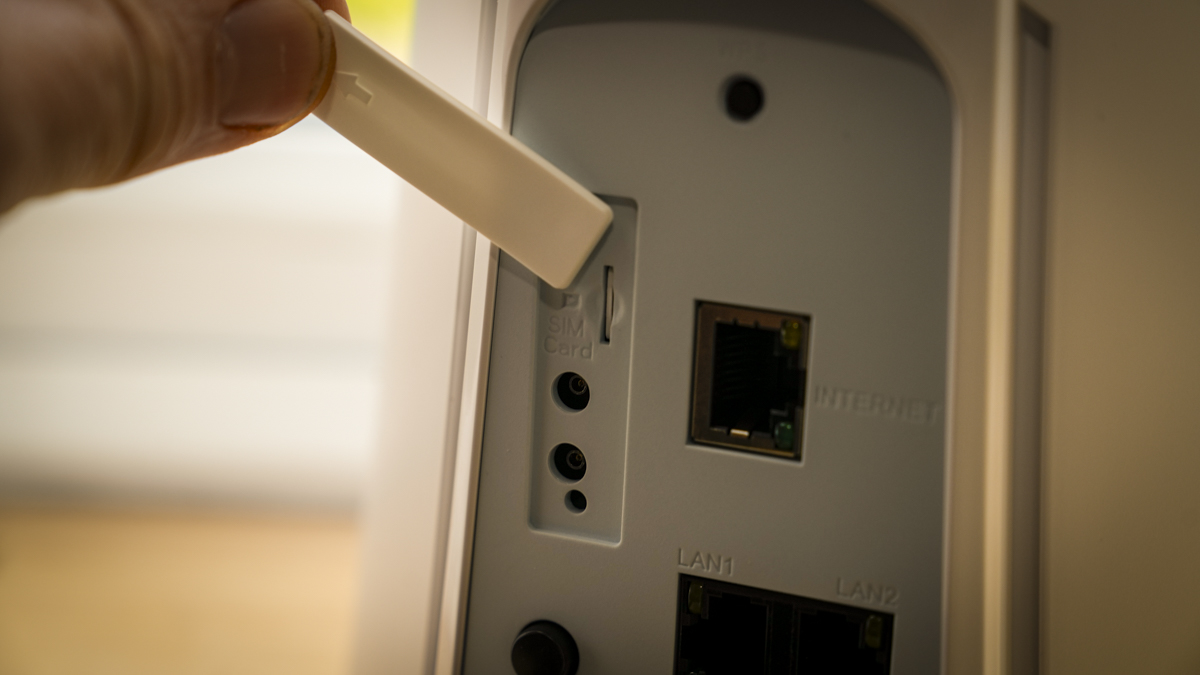
On the back of the router is a 2.5GbE WAN and four gigabit Ethernet ports, which I was able to plug directly into the network, then there’s the all-important slot of the Nano SIM and AC power socket and the option to connect the TS-9 antenna if you need a connection signal strength boost. Locally, for me, this might have been an idea, but those were not provided for this review.
Getting started with the router is straightforward: install the Nano SIM, then plug the box into the mains. Once done, you install and connect the app, update passwords, and create or log in to your D-Link account, and then you’re pretty much set to go.
For wireless, like any router, you need the username and password; for the wired network connection, it just needs to be plugged in. I installed the DXP4800 GT and the IDX6011 Pro as part of my usual video setup.
As a cellular router, the ease of use and integration into my existing network while I wait for the fibre to be fixed was surprisingly smooth and easy.
- Design: 4.5 / 5
D-Link G572: Features
The G572 is quite an upgrade from the already impressive G530, with the main focus being the switch to Wi-Fi 7 and the inclusion of four network ports on the back. The cellular connection also offers 5G NR support, with theoretical download speeds of up to 7.01Gbps in SA mode for pure 5G potential and up to 5.67Gbps in NSA mode, where the 4G/LTE network is still the base infrastructure, which is the system by which I tested the unit.
Wi-Fi 7 BE7200 supports multi-link operation and dual-band speeds of up to 7200 Mbps, which really makes a difference as more devices are connected. It lets multiple devices connect to the same router using different bands, freeing up bandwidth and improving speeds.
On the back of the router are five network ports, with one WAN 2.5GbE set apart from the four Gigabit LAN ports that enable you to connect to your computer, NAS devices and other office equipment.
The main feature that sets this apart from a standard router is the slot for a Nano SIM. This is essentially the same type that you find in most phones, and you can get a data-only SIM package from most mobile providers.
Once inserted into the slot, it can connect to the cellular network to provide a fast internet connection. While a cellular network connection option is what differentiates this from the standard router, you can also plug directly into your standard wired fibre network connection with automatic failover.
The incoming network cable plugs directly into the 2.5GbE port; if your wired network fails, then it will automatically switch to the mobile connection, so you don’t have any downtime.
Through the test, I tried several locations, in the studio where it stood alone with the cellular network connection. In the home, the fibre internet had failed, so the box was positioned on the second story for the best hebest cellular network signal.
Finally testing in the office, where the wired connection is extremely slow and has dropouts, I put the router between the wired connection and used it as my Wi-Fi network so that when the fibre connection dropped, it automatically switches to the cellular network.
Alongside the hardware is also the D-Link Falcon app and the web UI, which enable you to set up and manage the box. The app, which is how most people will access and communicate with the router, is relatively simple and easy to navigate with access to all the settings you want. If you want a little bit more in-depth control, then you can use the web view that can be accessed directly from your browser window.
When it comes to security, the usual boxes are ticked: WPA/WPA2/WPA3 security, SPI firewall, anti-spoofing, IP filtering, DMZ, and WPS. I was also pleased to see that it offers parental controls, as well as a switch that basically turns everything off at night, so if you’re in the office and you want to switch it off completely when you leave, then you can just access the app, and it’s a simple one-touch button to switch it off.
If you’re in the home, using separate parental controls on the access, essentially saying that after 6 o’clock in the evening, all internet connections are off. The great thing here is that D-Link has really sorted this out, so it’s probably one of the quickest and easiest options I’ve come across in a long time.
The other big feature here, especially for office use, is that you can connect plenty of devices, so within the studio, I had one PC, two Macs, and two mobile phones connected. I also had two NAS systems, and the box handled everything with ease, providing fast internet and network access over the cellular and wired networks.
Even though the LAN ports only offer a Gigabit connection, as my network is isolated at 10GbE through the switch, this wasn’t too much of an issue and only limits the speed at which the wired devices to the router will connect to the internet, which, with the 4G connection, didn’t really pose an issue.
- Features: 4.5 / 5
D-Link G572 Review: Performance
Download speed: 79.3Mbps (4G network)
Upload speed: 5.97Mbps (4G network)
The G572 sounds like a great idea on paper and can be used in several ways. Firstly, if you’re in an office, outhouse, studio or other location where there is no wired internet connection, then you can use this router to connect to the cellular network, and then all of the devices can connect to it in exactly the same way as you usually have with a wireless router.
Alternatively, if the internet connection is absolutely critical and slightly unstable, as it often is here in the New Forest, you can place it between your wired connection and use it as a wireless router in exactly the same way as all other routers of this type. However, if that wired connection falls over at any point, then the cellular connection kicks in, meaning that you have no break in network connectivity. If you plug it into your existing wireless network, as I have in this review, you'll notice very little difference in the connection, even if there is a slight drop in speed, unless it’s uploads where there will a significant slow down.
Unlike portable cellular routers that you can take anywhere, this one is designed to be plugged into mains power, so you can use it in your office, home, or anywhere else with mains power. In this review, I also had to plug it into a Jackery 1000 V2 power station because the place with our best cellular connectivity in the office was too far from a plug to connect without an extension lead. Used in this way, it actually provided a sound solution.
Getting set up and started with it was all easy enough, and once the unit was taken out of the box, it was simply a case of plugging my Nano SIM into the slot on the back and then plugging it into the mains. In the studio, this was as far as it went. I was able to connect using the app and get the rest of the unit set up; it was all quick and really straightforward.
Once connected, whilst I could only find a 4G connection, the transfer rates were almost at 80 Mbps, which was impressive on the download, although the upload speed, closer to 5 and 6 Mbps, was less impressive than my usual wired connection, but in line with what I’ve experienced in the past.
Once everything was set up, I could connect to whichever device I wanted to the router, select that network name, enter the password, wait a couple of seconds, and it would connect. What was impressive here was that every device I connected to delivered similar performance: newer Wi-Fi 7 devices were limited only by the cellular network speed, while older devices that only featured Wi-Fi 6 still produced very fast speeds. Unfortunately, there is no 5G coverage in this area.
Used off-site with no wired connection, I had the router running for around six weeks, and it provided a solid, stable connection throughout, even during the heatwave, when the wired connection at home decided to come to a grinding halt and has since failed to come back online.
While the first month of the test proved just how good this router was in the office and studio, where it provided decent internet connection for download and moderate for upload, the real test came where I had to package up the router and take it home, find a location around the house where I could actually get a mobile phone signal for that data connectivity, and then plug it in.
I’m used to network speeds of around 150 Mbps and upload speeds that are equally impressive; however, while we used to have very decent cellular connectivity, that connectivity has recently dropped out this year. In searching around the house for a decent location for the router, I finally settled on the second floor and the rear of the house, which must have had the clearest line of sight to whichever mast it’s picking up.
Once it was switched on and connected, the 4G connectivity showed at three to four bars, and testing out the transfer rates, I was again surprised to see that I was getting around 80 Mbps, not at all bad.
Now, in my second week of using it as my main internet connection, I can confirm it works incredibly well. I might not be able to test out the 5G speed, but even at 4G, with the slightly ropey connectivity of the area, I’m still getting those fast download rates, although uploads are slightly slower at about 5 to 6Mb per second, and you do have to pick your time of day, with that signal dropping to about 20Mb per second at the height of what seems to be mobile phone use in the area.
Despite that, in the evenings, we’d have at least one Alexa going, two laptops, possibly two mobile phones, and the Fire Stick playing whichever streaming channel we’d settled on for the evening. The D-Link G572 was able to supply all devices without issue, and whilst you could tell, especially with the streaming services, that I wasn’t having the usual speed of connection that I’m used to with the wired fibre connectivity, it was still incredibly impressive.
When the unit first arrived, and after I’d initially set it up, I tested it with the wall connection, installing it as the main router for the house and connecting it to the 2.5GbE WAN port at the back. I was again really surprised by the coverage it provided in the house, surpassing the Eero 6 wireless router I presently use. I also noted that those devices that utilise Wi-Fi 7, primarily a couple of mini PCs that I have for a review, saw the transfer rates vastly increased, still limited somewhat by the 2.5GbE input, but still significantly more than the other router.
Back in the office, and with it just connected to the mobile network and with one of the worst fibre connections going, I connected to the back of the D-Link G572 again, although this time it was more to see whether it could improve the connectivity I usually have in the office.
Here, I was really impressed: every time the wired connection cut out and switched to the mobile network, it was still not great and was far slower than when I was using it at home, but a definite improvement on what I’m used to.
To get a fast connection in my office, I need to cross the car park and go into the next building. There’s obviously a connection somewhere within the old building. However, having this router in between meant that when my wired connection was actually feeling like working well, I’d have a relatively decent connection, and then when it would drop out, it switched over to the cellular network, and for the first time, I was able to work nonstop using the internet connection without worrying about it dropping out partway through a call or upload.
What I really like about the router, although its speed was slightly limited, was the fact that it had those four Gigabit LAN ports, which means I can plug in my NAS boxes for archive and working, along with the network printer, which made them more easily accessible on the network, both wired and wireless. While my actual network in the office runs at 10GbE, this downgraded it to just one. For most office work, this is absolutely fine, and when I actually need faster connectivity, I can go through the switch and plug directly into the faster NAS.
As I’m used to working in an environment where the internet connection can be variable, from very good to absolutely non-existent, always having some sort of wireless router with me is an essential part of my working kit, and I usually rely on the Netgear Nighthawk M7, as it’s just a very powerful and portable solution, although even that struggles at the moment in the office.
The D-Link G572 is a far cheaper solution, which is good, especially considering the cost of a 5G unlimited data package, which can also see costs rise rapidly. With this AC-powered router, I was impressed from the outset. It is a bit of a shame that those LAN ports are limited to a Gigabit, but when it comes to one of these devices, it’s just simple. It does what it does, and you don’t need to really think about it. It’s exceptionally good, and for someone like me, who works in an older building in a town with very little internet, this makes a lot of sense.
- Performance: 4 / 5
D-Link G572: Final verdict
When I tried out the predecessor to the D-Link G572 last year, I was impressed by just how versatile it was and by the fact that it could serve as a backup to my internet connection. At that time, my wired and cellular network connections around the New Forest were exceptional, but in the intervening year, the cellular network dropped out entirely, and even the wired network that had always been so reliable became especially unreliable, meaning I had to look for alternative solutions.
Having now burnt through EE, O2, Vodafone and a few other providers, it turns out there's been an issue with our mast for almost a year, so a device with a good antenna to pick up whatever signal you can get is essential.
What I found with the D-Link G572 was that, even without the optional antenna, it still picked up a pretty decent signal as long as it was positioned correctly. That place in the house took quite some time to locate, but once I did, I was seeing speeds in excess of 80 Mbpsd, far faster than I would have thought possible and over 20 Mbps faster than the comparable rate on my iPhone 15 Pro using the same network.
I also like that I could plug it in between my wired fibre connection and use it as my wireless router, with it switching to cellular when the wired connection drops out. Even though many of my devices around the house couldn’t fully use that Wi-Fi 7 connectivity, it was fully backwards compatible and still provided all devices with a strong signal, enabling me to continue working despite cellular and wired connection issues.
As a solution for anyone working off-grid or in a location where a wired or even cellular data network can be an issue, this D-Link G572 is certainly worth the money. Whilst it might seem that it is a premium option, especially when you consider you’re also going to need a data SIM contract, actually, just the fact that it keeps you working online and able to do business makes it a valuable asset for any business.
Should I buy the D-Link G572?
Value | Initially, it seems expensive, especially when you put the cost of a cellular network package on top, but then, if it keeps you working, it more than pays for itself. | 4.5/5 |
Design | Very neat, with a tower design that sits easily on a shelf or window ledge, as long as you have power nearby to keep it running. | 4/5 |
Features | 5G and Wi-Fi 7 are leading features, and it’s also good to see that it’s fully backwards compatible with your older gear. | 4.5/5 |
Performance | Only really limited by your cellular network connection, and when it works, plugging it into your wired connection improves usability. | 4/5 |
Overall | A great choice as a fallback if you have an internet connection that is temperamental and unreliable, and more than worth the money to keep you working. | 4.5/5 |
Buy it if...
Fibre connection unavailable
If you’re in a new office, location or studio where there just isn’t any fibre connection, then this cellular network router can be an absolute lifesaver, providing you with ultra-fast internet, as long as the network is available and comes close to fibre in speed.
Backup matters most
If you’re working in an area with an unreliable copper or fibre connection to your home or office and are regularly cut off from the internet, this is a perfect solution.
Don't buy it if...
The signal is weak
If your area doesn’t have 5G coverage, you'll be limited in the speeds you’ll get from this wireless cellular network router; however, even with 4G speeds, those transfer rates are impressive.
You need 6GHz
This is a dual-band Wi-Fi 7 router, so tri-band 6GHz isn’t available. If you want a 6GHz option, you’ll be looking at a lot more money.
For more connectivity solutions, we've tested the best Wi-Fi routers.
via Hosting & Support
Comments
Post a Comment